I was trying to get a coding agent to fix a few notebook cells, and it asked me to copy-paste snippets just so it could figure out which ones I meant. It worked, but it felt like a step backward. I knew exactly which cells I meant, but I had no direct way to point to them.
Usually, we point agents to notebook cells indirectly: the cell that loads the dataset, the cell that does the groupby and filtering, and so on. It works, but it is not a great way to address a cell. Insert a cell, delete one, or reorder the notebook, and positional references change. Descriptions can also be ambiguous when several cells look similar.
Then I noticed something interesting while watching the agent work: it was already using the cell’s id to find the cells I was talking about. The agent had a precise identifier for the cell. I did not.
That got me thinking: why can’t we use the same language?
With cell ID I should be able to say:
Fix cell
e66c99c5. The groupby looks wrong.
Short, precise, and directly useful to both sides.
The id that’s already there
Since nbformat 4.5, Jupyter notebook cells have an id:
{
  "cell_type": "code",
  "id": "e66c99c5",
  "metadata": {},
  "source": [
    "df = load_dataset(path)\n",
    "df.head()"
  ]
}
The id gives the cell an identity independent of its position in the notebook.
So the information was already there. The agent could see it. I just could not easily see or copy it from VS Code.
That’s what led me to build Notebook Cell Id.
Notebook Cell Id
Notebook Cell Id is a small VS Code extension that shows each notebook cell’s nbformat id directly in the cell’s status bar.
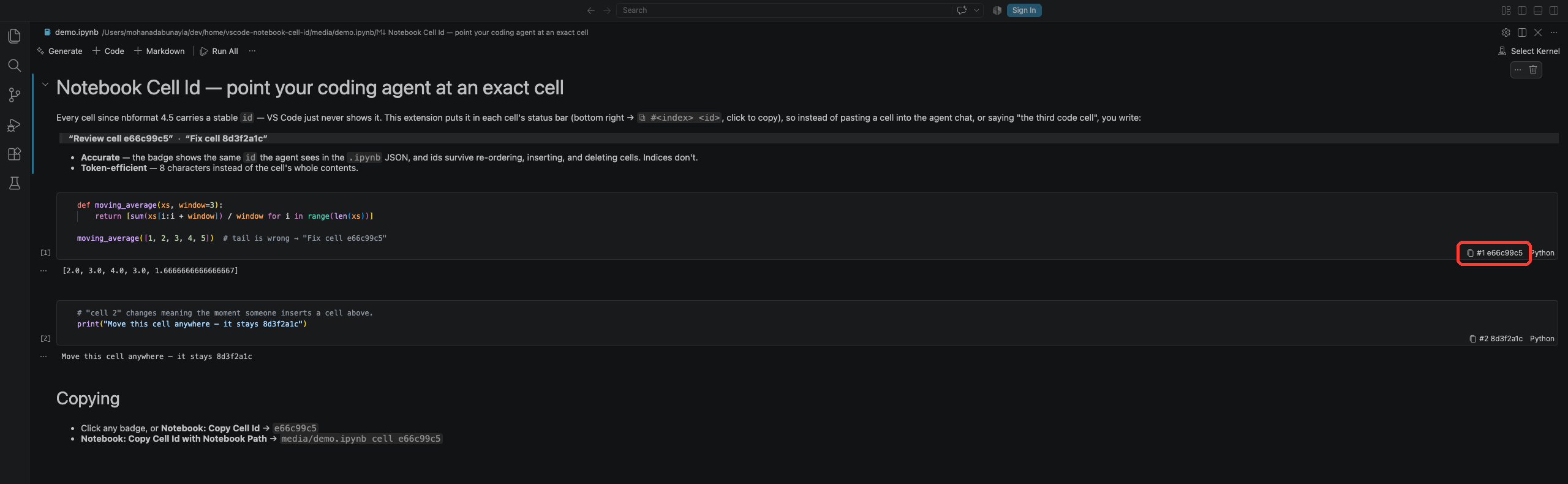
Each cell gets a small badge such as:
⧉ #5 e66c99c5
Click it and the id is copied.
There are also Command Palette commands:
- Notebook: Copy Cell Id →
e66c99c5 - Notebook: Copy Cell Id with Notebook Path →
article_mat/v2_nb/step_3.ipynb cell e66c99c5
Copying the id was only half the loop, though. The other half is going back the other way: the agent hands you a cell id, and you need to land on that exact cell.
Find Cell by Id
That’s the newest addition: Notebook: Find Cell by Id. Run it, paste in an id, and VS Code selects and scrolls to that cell.
It’s bound to Ctrl+Alt+F (Cmd+Alt+F on macOS) while a notebook is focused - Ctrl+F was left alone since VS Code already uses it for the built-in text find widget. It’s also one click away as a button in the notebook’s top toolbar, right next to +Code / +Markdown:

So the id now works both ways. The agent tells me e66c99c5 is the problem cell, and I jump straight to it - no scrolling, no “which one is that again.”
The source is available on GitHub under the MIT license.
One caveat: cells only carry ids in nbformat 4.5 and newer - older notebooks show no badges until we re-save them.
Sometimes the information we need is already there ;)